On this page
Choose the output for the image
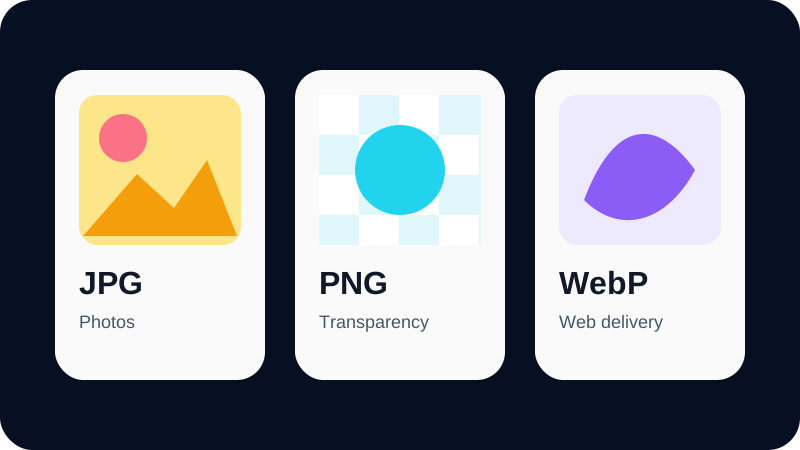
Use JPG for photographs where broad compatibility and smaller lossy files matter. Use PNG for lossless graphics and transparency. Use WebP for efficient modern web delivery with optional transparency.
A converter should not automatically choose for you. Review the content and destination, then select the format deliberately.
Use the live preview
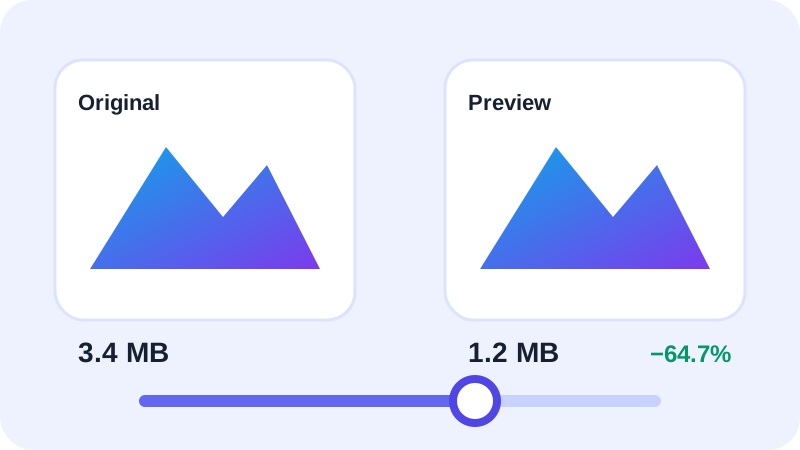
Nexynto generates a real browser-encoded preview when the output, quality or JPG background changes. The preview size is measured from the generated blob rather than estimated.
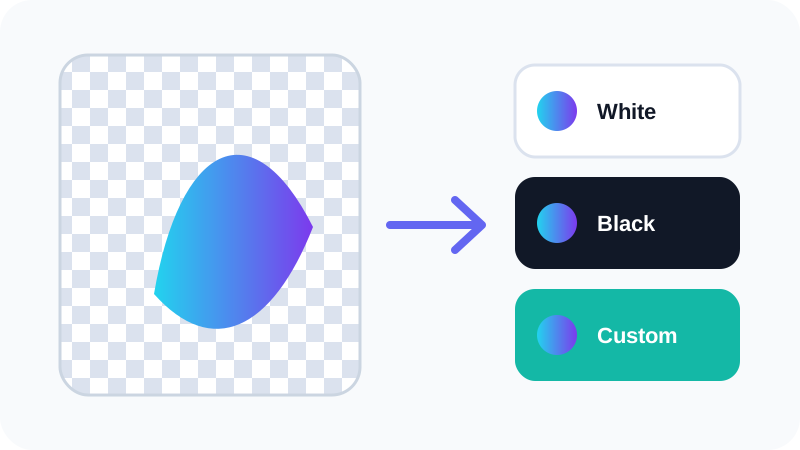
Compare fine edges, text, gradients and transparent areas. A smaller file is useful only when the visual result remains suitable.
Know what stays and what changes
Image Converter preserves original pixel dimensions by default and applies source orientation during decoding. Canvas re-encoding removes most EXIF, GPS, camera and ICC metadata.
Use Bulk Image Resizer when dimensions, cropping, fitting or padding are the primary task.
Put the workflow into practice
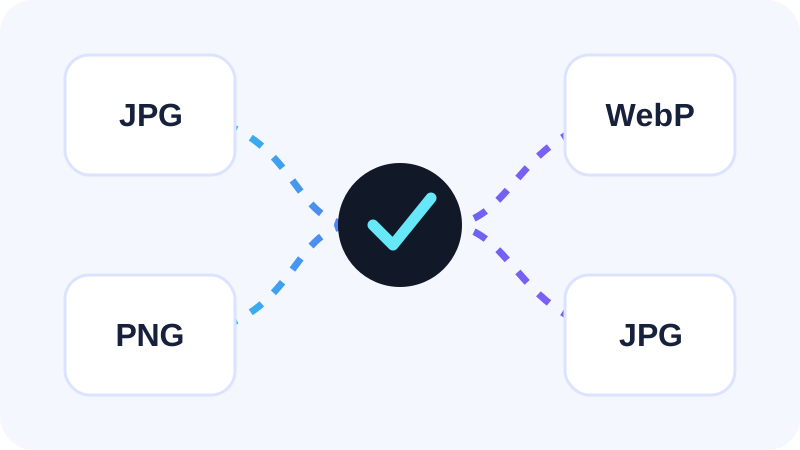
Add an ordinary raster image, choose JPG, PNG or WebP, then compare the real browser-encoded preview, transparency behavior and measured file size before conversion.
Try Image ConverterFrequently asked questions
Clear answers before you convert
Can JPG and JPEG be used interchangeably?
Yes. They are common extensions for the same image format.
Does conversion resize the image?
No. Image Converter preserves source pixel dimensions.