On this page
Start with a suitable format
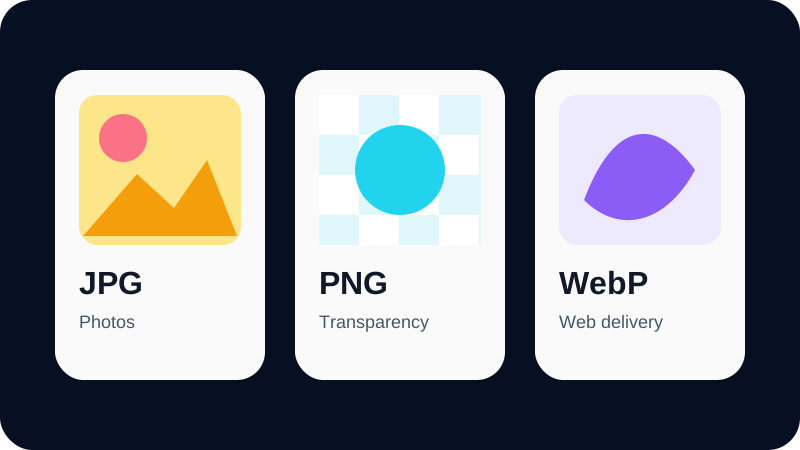
Photographs often compress efficiently as JPG or WebP. Flat graphics and transparency can favor PNG or WebP. Converting a photograph to PNG may increase its size even though PNG is lossless.
The smallest format varies with the source; use measured outputs instead of universal promises.
Adjust quality with a real preview
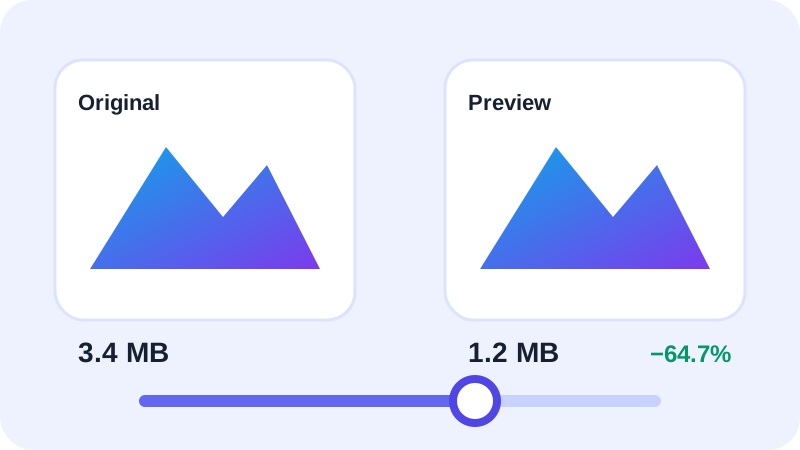
Lossy quality controls change how aggressively JPG and WebP encoders simplify the image. Lower settings can reduce size but may introduce ringing, blocking or blurred fine detail.
Inspect text, faces, gradients and high-contrast edges. Nexynto displays the actual preview blob size and percentage change.
Change dimensions only when intended
Reducing pixel dimensions can create larger savings than format conversion, but it also removes resolution. Image Converter therefore preserves dimensions by default.
Open Bulk Image Resizer when the destination has a known width, height, fit, crop or padding requirement.
Put the workflow into practice
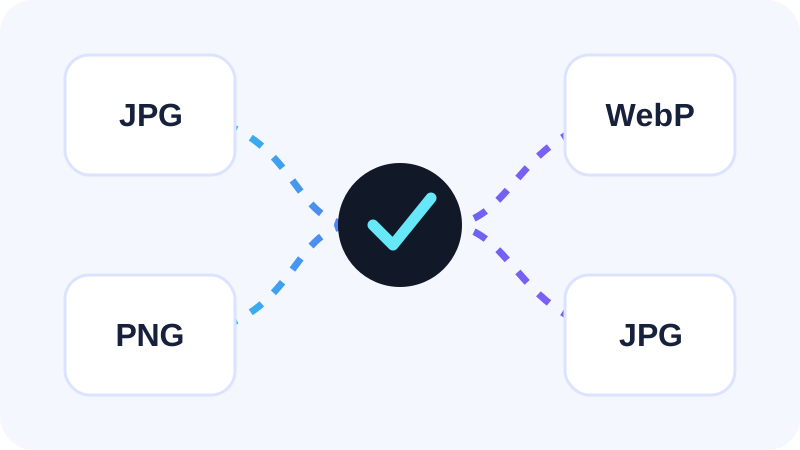
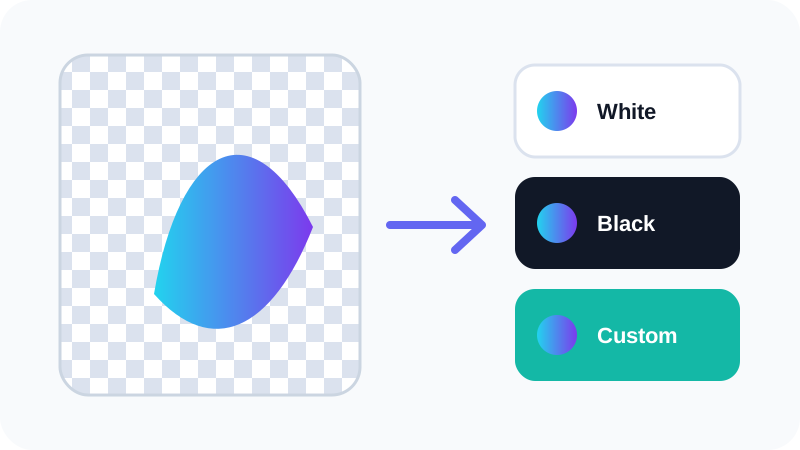
Add an ordinary raster image, choose JPG, PNG or WebP, then compare the real browser-encoded preview, transparency behavior and measured file size before conversion.
Try Image ConverterFrequently asked questions
Clear answers before you convert
Does a lower quality always make a smaller file?
Usually for JPG and WebP, but exact output depends on the browser encoder and image content.
Does PNG have a quality slider?
The browser PNG encoder is lossless, so a JPG-style quality slider would be misleading.