On this page
Why transparency disappears
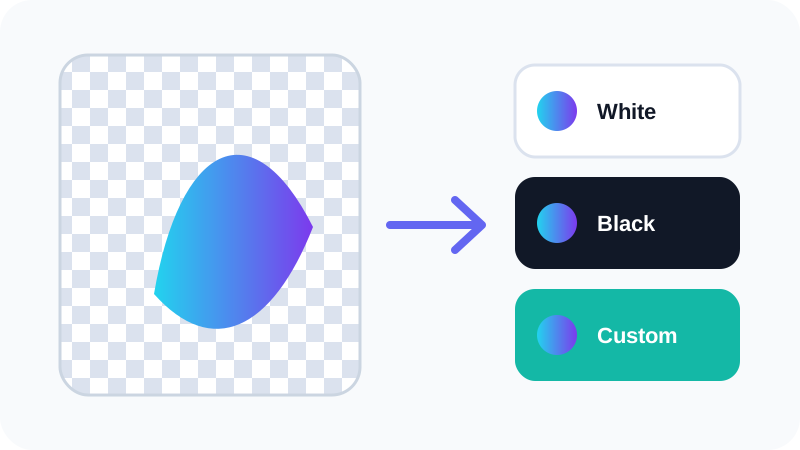
PNG can store a separate alpha value for every pixel. JPG stores visible color only. When PNG becomes JPG, every transparent or partially transparent pixel must be composited onto a background.
Choosing the background before conversion prevents renderer defaults from deciding the appearance.
Choose white, black or a brand color
White is a safe default for documents, marketplaces and light webpages. Black can suit dark compositions. A custom color can match a known page or brand surface.
Preview edges carefully because antialiased pixels may contain partial transparency that blends with the selected color.
Keep PNG or WebP when alpha is required
If the image must sit on different backgrounds, do not flatten it to JPG. Keep PNG or use WebP with transparency.
Nexynto detects transparency where feasible and displays a text warning when JPG is selected.
Put the workflow into practice
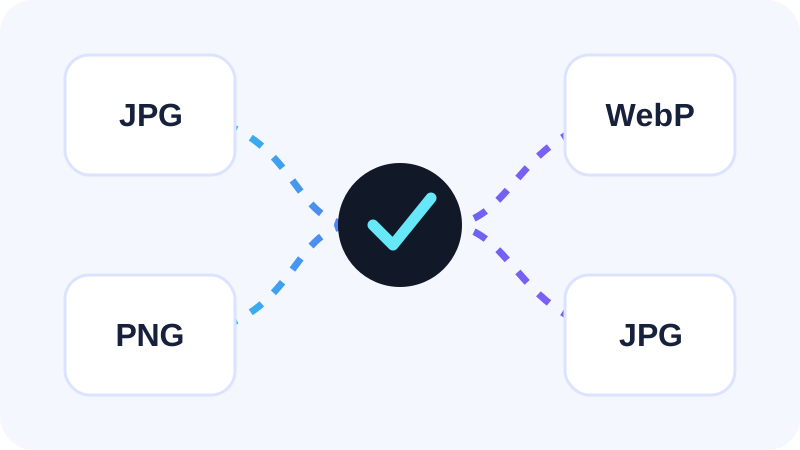
Add an ordinary raster image, choose JPG, PNG or WebP, then compare the real browser-encoded preview, transparency behavior and measured file size before conversion.
Try Image ConverterFrequently asked questions
Clear answers before you convert
Why did my transparent logo turn black?
The converter or viewer flattened transparent pixels without the intended background.
Can JPG preserve alpha transparency?
No. Use PNG or WebP when transparency must remain.