
On this page
Choose clear initials and a date format
Use the initials expected by the document owner. For dates, choose DD/MM/YYYY, MM/DD/YYYY, YYYY-MM-DD, or a long date according to the audience and workflow.
An unambiguous format such as YYYY-MM-DD or a written month can help international recipients.
Place elements on the correct pages
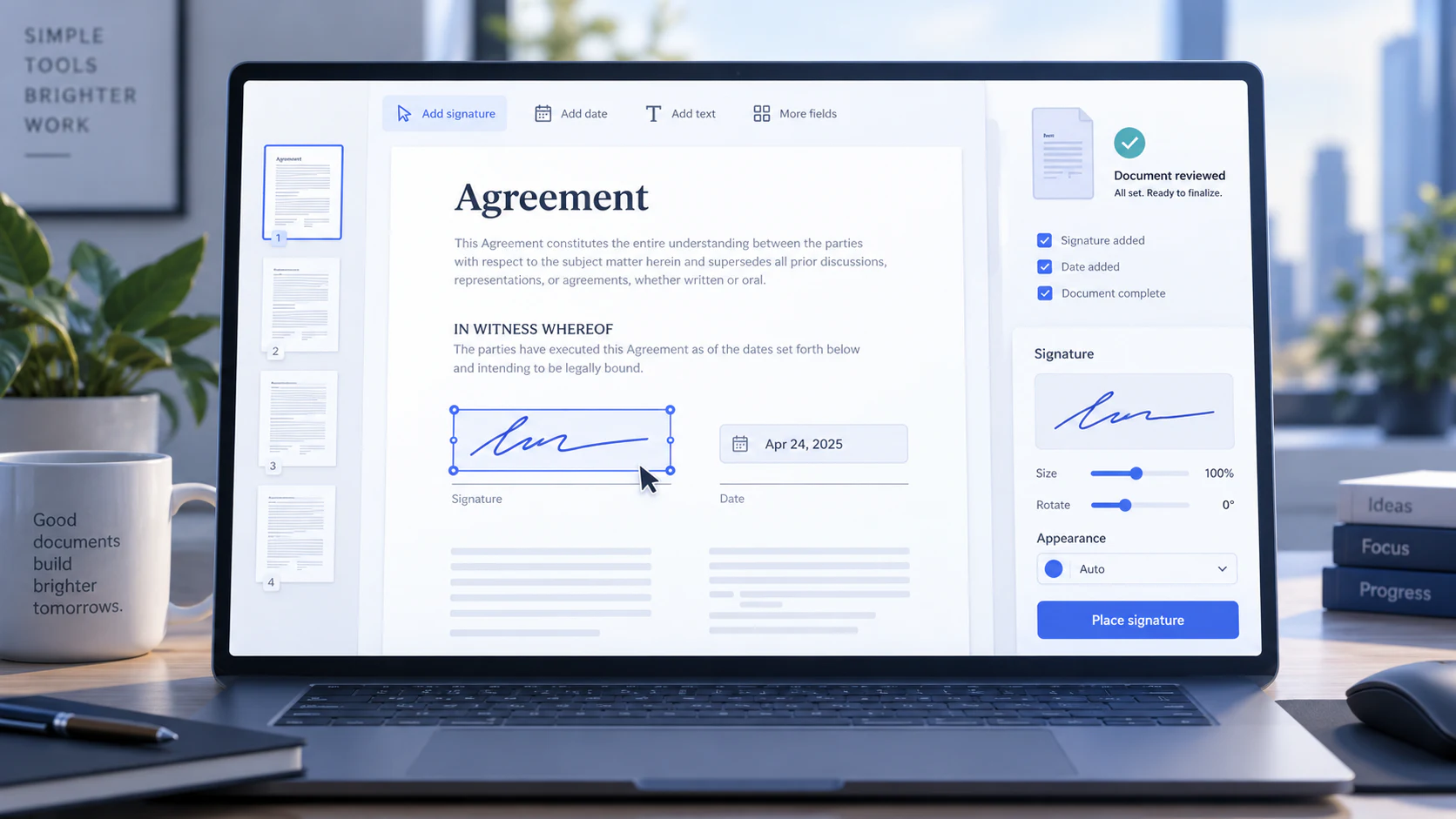
Navigate with thumbnails or the page jump control, then place initials or a date inside the intended field. Move, resize, or use exact position controls when needed.
For repeated marks, duplicate to selected pages or all pages only after reviewing the confirmation.
Review before finishing
The output contains permanent visual page content, not a certificate-backed signature.
- Confirm every required page.
- Check that marks remain inside page bounds.
- Verify date formats and spelling.
- Keep the original document.
- Open the exported copy and inspect the final appearance.
Put the workflow into practice
Create a visual signature, place it with initials or dates on the required pages, and review every mark before exporting the signed copy.
Try Sign PDFFrequently asked questions
Clear answers before you sign
Can I use the current local date?
Yes. The date tool inserts the current local date using the selected format.
Can I repeat initials across pages?
Yes. Select the initials and use the confirmation-gated selected-pages or all-pages action.
Can I move an element after placing it?
Yes. Select it and drag, resize, rotate, or edit its exact properties before finishing.